

KMP BLE Demo (iOS & Android): Send a Command and Display the Device Response
This page is based on the latest KMP BLE Demo-251222-ios-android.md. It shows how to use Kotlin Multiplatform (KMP) + Android BLE GATT + iOS CoreBluetooth to connect to an OP-BT / OP-BTS device, send the command BaudTran,9600,N,8,1, and display the response (for example: OK,VER=01.00) in the UI on both Android and iOS. The two platforms share core logic through a KMP shared module.
1. Build Requirements & Environment Setup
- IDE: Android Studio
- Kotlin Multiplatform (KMP) template must be available under File → New → New Project
- JDK: Gradle/AGP runs on JDK 17. The project compiles targeting Java 11
- Create a new project:
- Name:
OPManagerDemo - Template: Kotlin Multiplatform (KMP)
- Language: Kotlin
- Minimum SDK: Android 5.0 (API 21) or higher
- Name:
Source Code
The complete source code for this demo is available on GitHub:
- GitHub Repository: https://github.com/zenovate-team/OPManagerDemo-KMP
You can clone the repository and open it directly in Android Studio:
git clone https://github.com/zenovate-team/OPManagerDemo-KMP.git
cd OPManagerDemo-KMP
2. Demo Overview
2.1 Features
- Scan nearby BLE devices
- Show devices (name + MAC address) in a list
- Connect to a selected device via BLE GATT
- Send the command
BaudTran,9600,N,8,1to the device - Receive and display the device response, e.g.
OK,VER=01.00 - Show connection status, sent commands, and received data as logs in the UI
2.2 Libraries / APIs
- Bluetooth (BLE GATT):
BluetoothLeScannerBluetoothGatt/BluetoothGattCallbackBluetoothGattCharacteristic/BluetoothGattDescriptor
- Runtime permissions:
- AndroidX Activity Result API:
ActivityResultContracts.RequestMultiplePermissions
- AndroidX Activity Result API:
- Kotlin Multiplatform:
- Shared module with
commonMainandandroidMainsource sets - Shared models and utilities for cross-platform compatibility
- Shared module with
2.3 Protocol & UUID
-
Text command:
- Send:
BaudTran,9600,N,8,1 - Example response:
OK,VER=01.00
- Send:
-
GATT UUID config (16-bit / 32-bit / 128-bit are supported):
- Service UUID:
18F0 - Notification Characteristic UUID:
2AF0 - Write Characteristic UUID:
2AF1
- Service UUID:
3. Screenshots
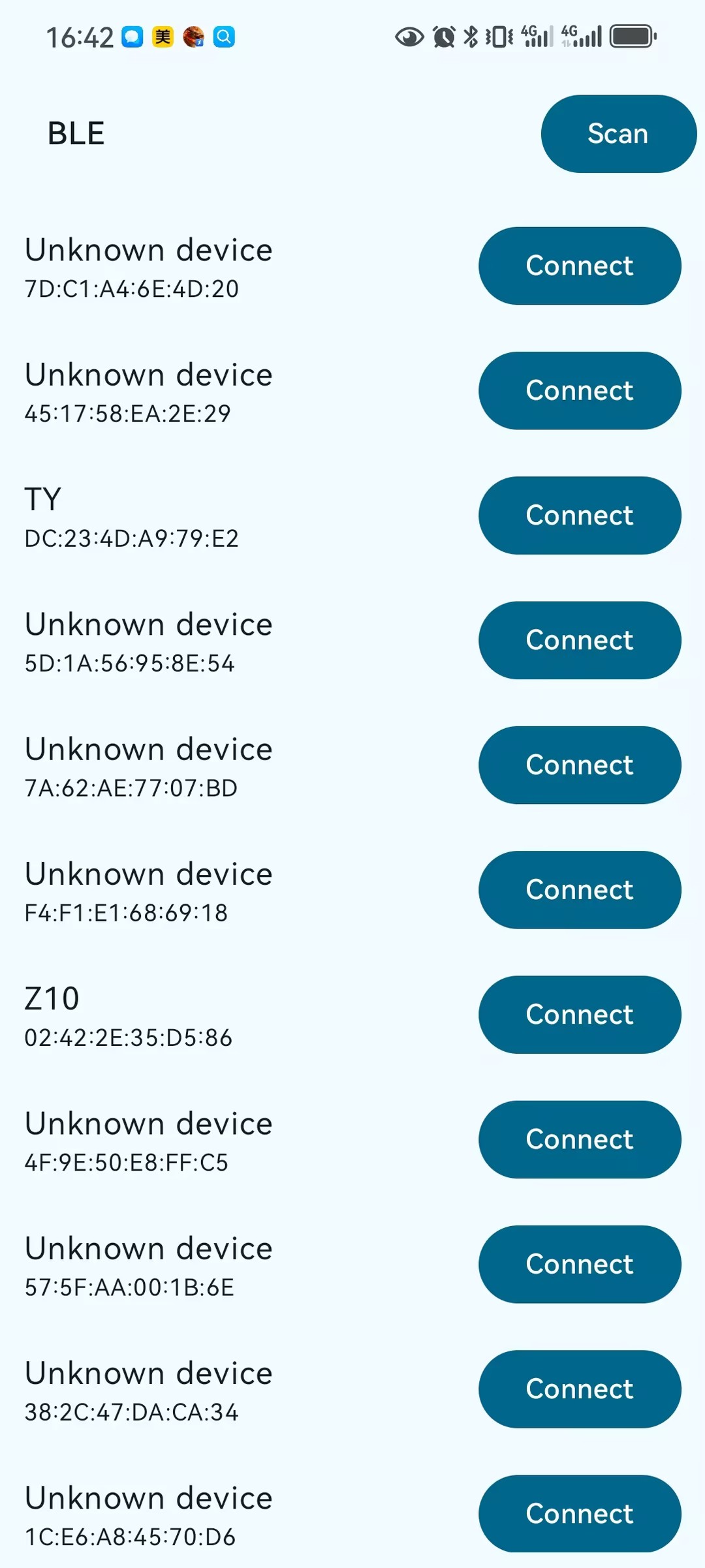
Device scan list screen

Command and response log screen
4. Android Permissions (AndroidManifest.xml)
Edit app/src/main/AndroidManifest.xml with content similar to:
<?xml version="1.0" encoding="utf-8"?>
<manifest xmlns:android="http://schemas.android.com/apk/res/android"
    xmlns:tools="http://schemas.android.com/tools">

    <!-- Bluetooth permissions (compatible with pre/post Android 12) -->
    <!-- Legacy Bluetooth/location permissions for Android 11 and below -->
    <uses-permission
        android:name="android.permission.BLUETOOTH"
        android:maxSdkVersion="30" />
    <uses-permission
        android:name="android.permission.BLUETOOTH_ADMIN"
        android:maxSdkVersion="30" />
    <uses-permission
        android:name="android.permission.ACCESS_COARSE_LOCATION"
        android:maxSdkVersion="30" />
    <uses-permission
        android:name="android.permission.ACCESS_FINE_LOCATION"
        android:maxSdkVersion="30" />

    <!-- New Bluetooth runtime permissions for Android 12+ -->
    <uses-permission
        android:name="android.permission.BLUETOOTH_SCAN"
        android:usesPermissionFlags="neverForLocation" />
    <uses-permission android:name="android.permission.BLUETOOTH_CONNECT" />
    <uses-permission android:name="android.permission.BLUETOOTH_ADVERTISE" />

    <!-- Bluetooth / BLE hardware capabilities (optional) -->
    <uses-feature
        android:name="android.hardware.bluetooth"
        android:required="false" />
    <uses-feature
        android:name="android.hardware.bluetooth_le"
        android:required="false" />

    <application
        android:allowBackup="true"
        android:dataExtractionRules="@xml/data_extraction_rules"
        android:fullBackupContent="@xml/backup_rules"
        android:icon="@mipmap/ic_launcher"
        android:label="@string/app_name"
        android:roundIcon="@mipmap/ic_launcher_round"
        android:supportsRtl="true"
        android:theme="@style/Theme.OPManagerDemo">
        <activity
            android:name=".MainActivity"
            android:exported="true"
            android:label="@string/app_name"
            android:theme="@style/Theme.OPManagerDemo">
            <intent-filter>
                <action android:name="android.intent.action.MAIN" />
                <category android:name="android.intent.category.LAUNCHER" />
            </intent-filter>
        </activity>
    </application>

</manifest>
Runtime permission requests are implemented in Kotlin using ActivityResultContracts.RequestMultiplePermissions (see next section).
5. Sync the Project (Gradle)
After opening the project, click Sync Now (or File → Sync Project with Gradle Files).
- Gradle will automatically download the required dependencies and Android components defined by this repo.
- When the sync succeeds, the project should build and run on a device.
At this stage, you do not need to manually add dependencies. The next steps focus on permissions and BLE logic.
6. Key Kotlin Code Structure
The full source is in KMP BLE Demo-251218.md. This KMP project uses a shared module structure:
6.1 Main Activity (Android App Module)
app/src/main/java/com/example/opmanager/opmanager/demo/MainActivity.kt- Contains UI (Jetpack Compose), BluetoothController, BleConnectionManager
- Uses shared models from
com.example.opmanager.sharedpackage
6.2 Shared Module (KMP)
The shared module contains platform-agnostic code used by both Android and iOS:
-
shared/src/commonMain/kotlin/com/example/opmanager/shared/BleConfigStrings.kt- UUID string constants (16-bit / 32-bit / 128-bit supported)
- Service UUID:
18f0, Write UUID:2af1, Notify UUID:2af0
-
shared/src/androidMain/kotlin/com/example/opmanager/shared/BleConfig.kt- Android-specific UUID parsing from strings to
UUIDobjects
- Android-specific UUID parsing from strings to
-
shared/src/commonMain/kotlin/com/example/opmanager/shared/SharedModels.ktBluetoothDeviceUi,ConnectionLog,LogType,ConnectionState
-
shared/src/commonMain/kotlin/com/example/opmanager/shared/BleTextCommandFormatter.kt- Command formatting utilities (unescape, append CRLF)
-
shared/src/commonMain/kotlin/com/example/opmanager/shared/BleIncomingProcessor.kt- Processes incoming BLE notification text and generates logs
Detailed Android and iOS implementation samples (including MainActivity.kt, BleConnectionManager, BleCentralManager.swift, and shared utilities) can be found in KMP BLE Demo-251222-ios-android.md and the GitHub repository.
7. How to Run (Android & iOS)
7.1 Android
- Connect your Android phone to your computer with a USB cable. You’ll see a debugging permission request.
- In Android Studio, click Run ▶ and choose your device
- After the app starts:
- Tap Scan
- If Android asks for Bluetooth/location permissions, grant them
- Tap a device in the list to connect
- Send the command
BaudTran,9600,N,8,1 - Display the result
OK,VER=01.00
7.2 iOS
The iOS demo is built in Xcode and uses the shared KMP module (shared.framework) produced by Gradle, as described in KMP BLE Demo-251222-ios-android.md.
- Make sure you have Xcode 16.4+ and Java (JDK 17) available in
PATH(java -version) - Open the iOS app project (for example
iosApp/OPManagerIOSDemo.xcodeproj) in Xcode - Build the project: Xcode will invoke the Gradle task (such as
:shared:packForXcode) to generate/updateshared.framework - On a real iPhone, run the OPManagerIOSDemo scheme and grant Bluetooth permission when prompted
- In the app:
- Tap Scan to discover nearby BLE devices
- Tap Connect on your OP-BT/BTS device
- Enter a command (e.g.
BaudTran,9600,N,8,1) and tap Send - Observe the notification responses (for example
OK,VER=01.00) in the log list