

Open the Import Configuration screen
- Step 1. On Home, Device list, or Device home, tap the menu button in the upper-right corner.
- Step 2. Tap Configuration (configuration management).
- Step 3. The Import Configuration screen opens (the app bar title is Import Configuration).
Tap the menu button in the upper-right corner. Tap Configuration (configuration management).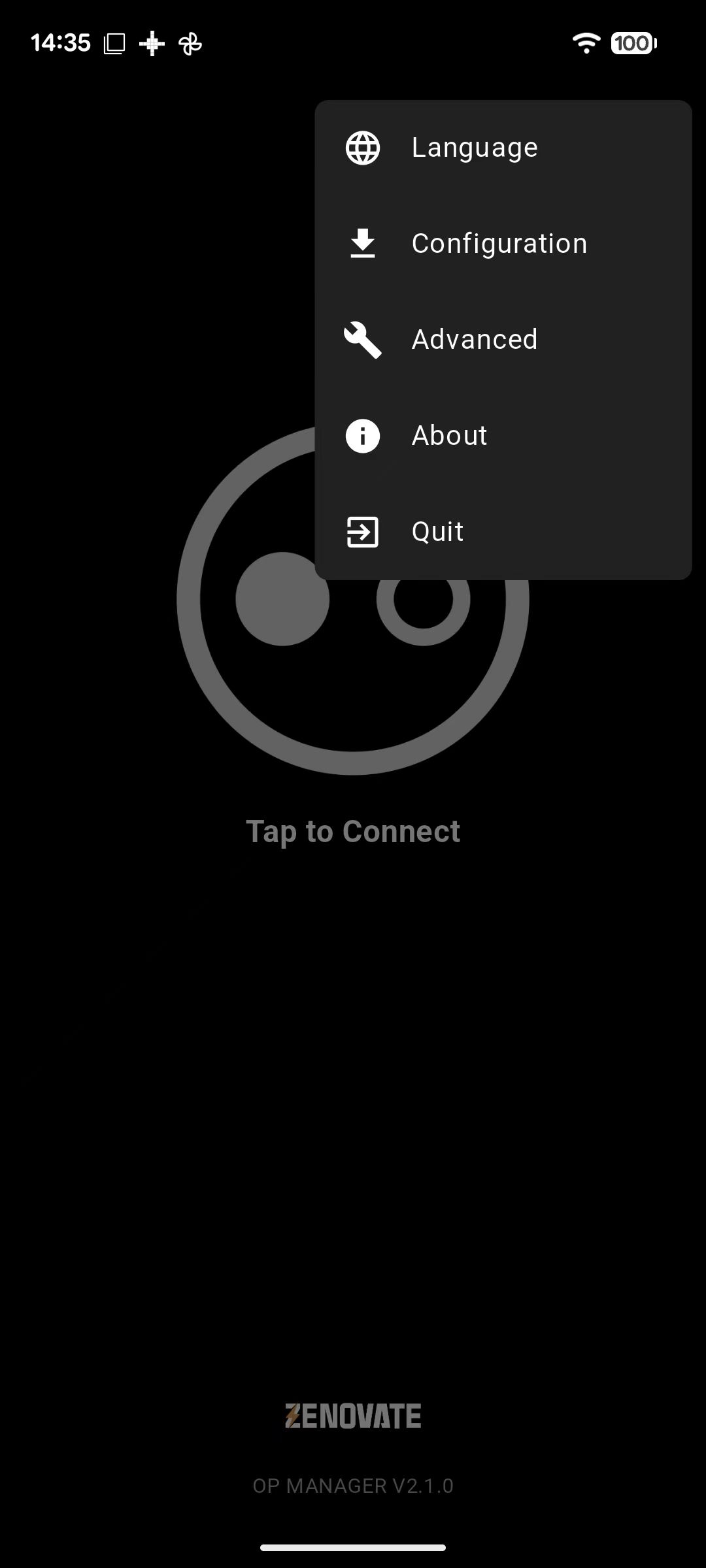
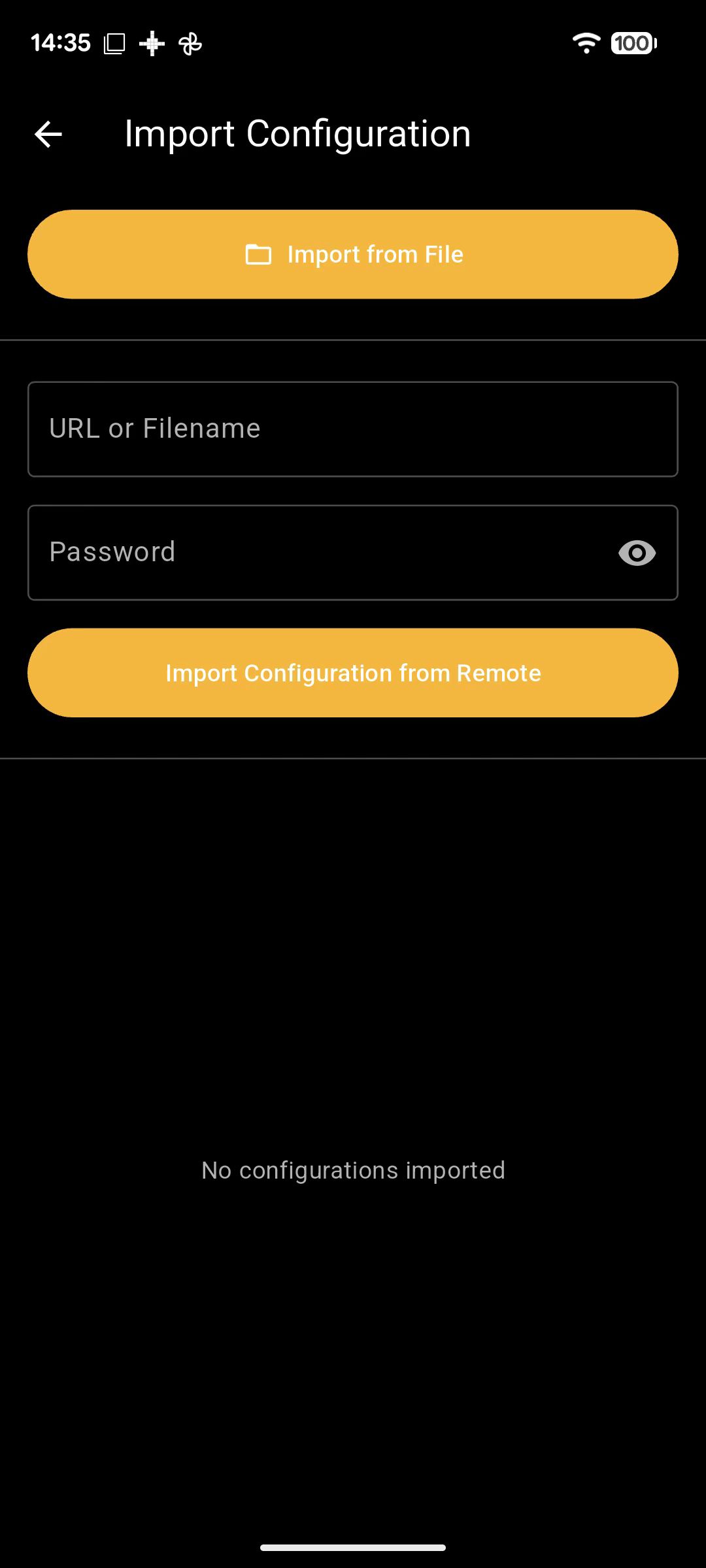
Import from a local file
- Step 1. Tap Import from File at the top of the screen.
- Step 2. Pick a configuration file in the system file picker (supports .dat and similar formats, as long as they match the format supplied by your server).
- Step 3. The app detects plain or encrypted content, decrypts if needed, and parses the file.
- Step 4. On success you will see Configuration loaded from file successfully and the imported items appear in the list below. On format or decryption errors, an error message is shown.
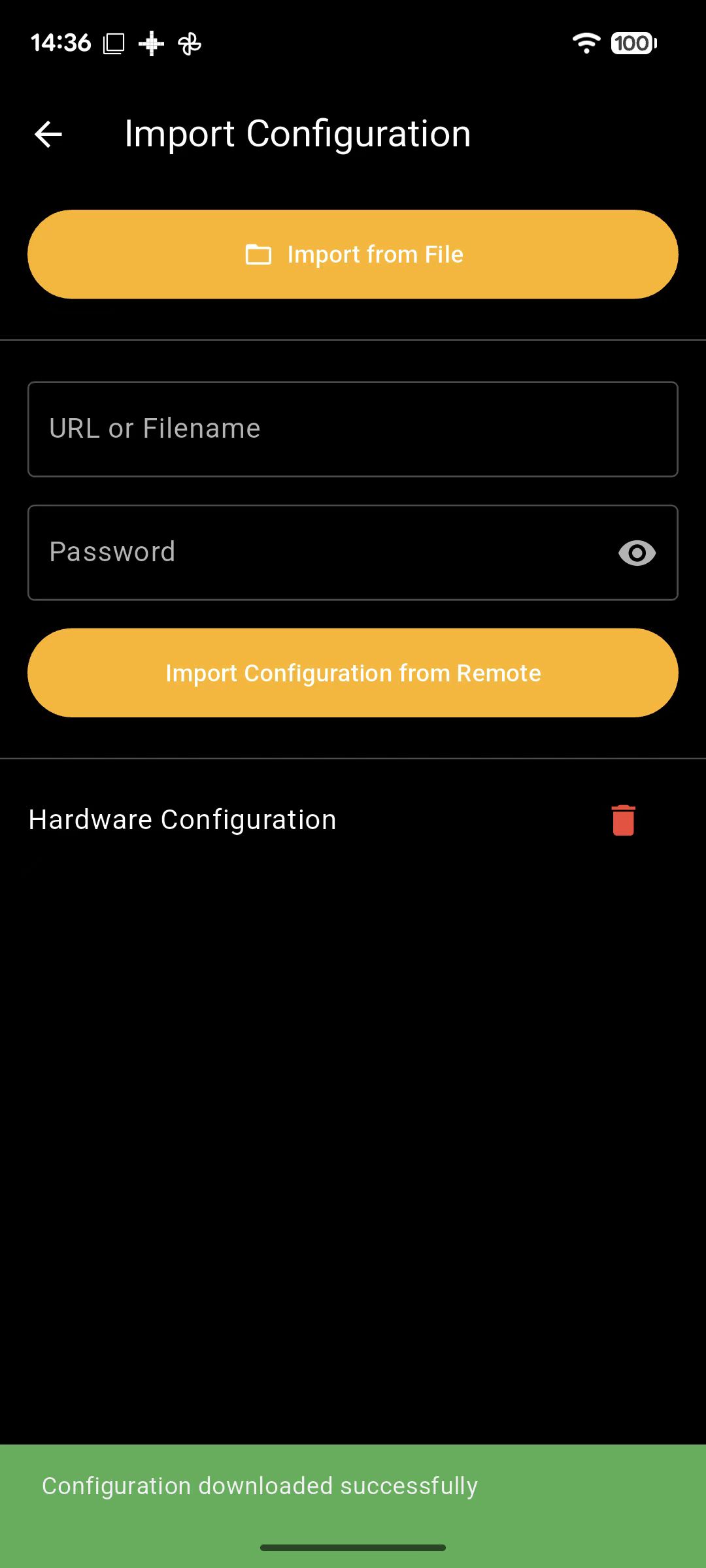
Import from File and pick a configuration file.
Import from a remote server
- Step 1. Make sure the device has an Internet connection.
- Step 2. In URL or Filename, enter either:
- A full URL, e.g.
https://example.com/config.dat - A filename only, e.g.
config_forwardmode.dat
- A full URL, e.g.
- Step 3. Enter the download Password provided by your vendor (the app encrypts the password before sending it).
- Step 4. Tap Import Configuration from Remote.
- Step 5. After a successful download and parse, you will see Configuration downloaded successfully and the list refreshes. Wrong password shows Invalid password; network or server issues show Download failed with details.
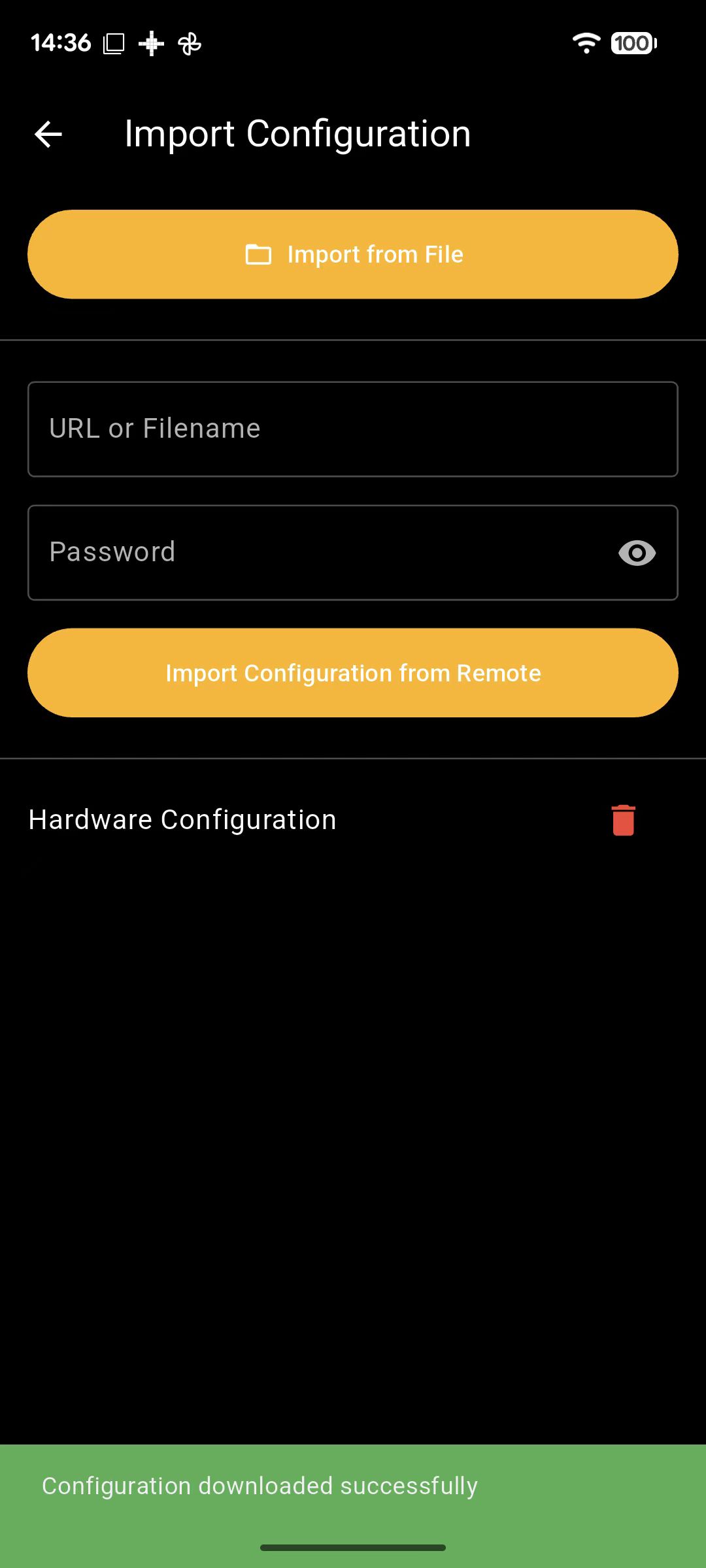
URL or Filename, password, and Import from Remote.
Imported list and delete
- The lower part of the screen lists all saved custom configurations by name.
- Tap the delete icon on a row and confirm to remove that configuration.
Where to use imported configuration
After a successful import, open Information and Setting on the device home screen to view, edit, and read/write those parameters on the device.
Note: If you import again with the same English name inside customFunctionName, the new file replaces the existing local entry with that name.
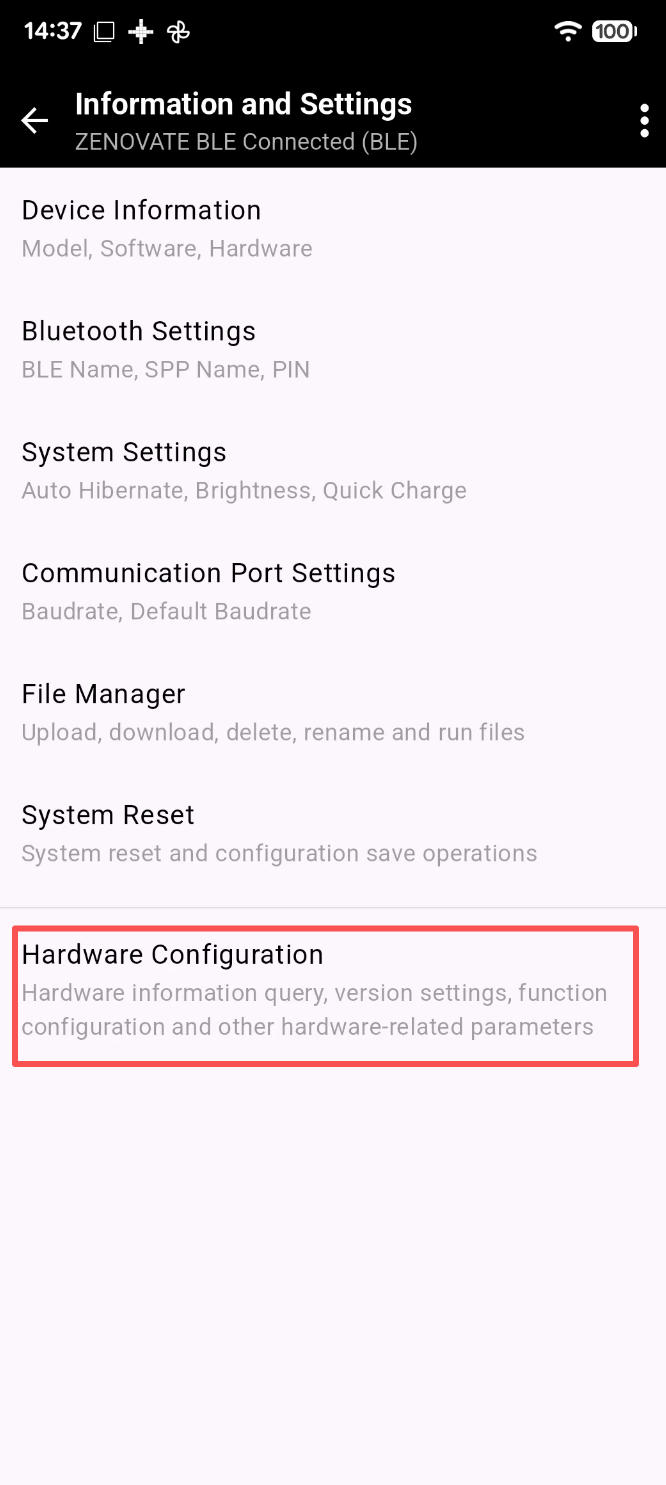
Open Information and Setting on device home to use imported parameters.